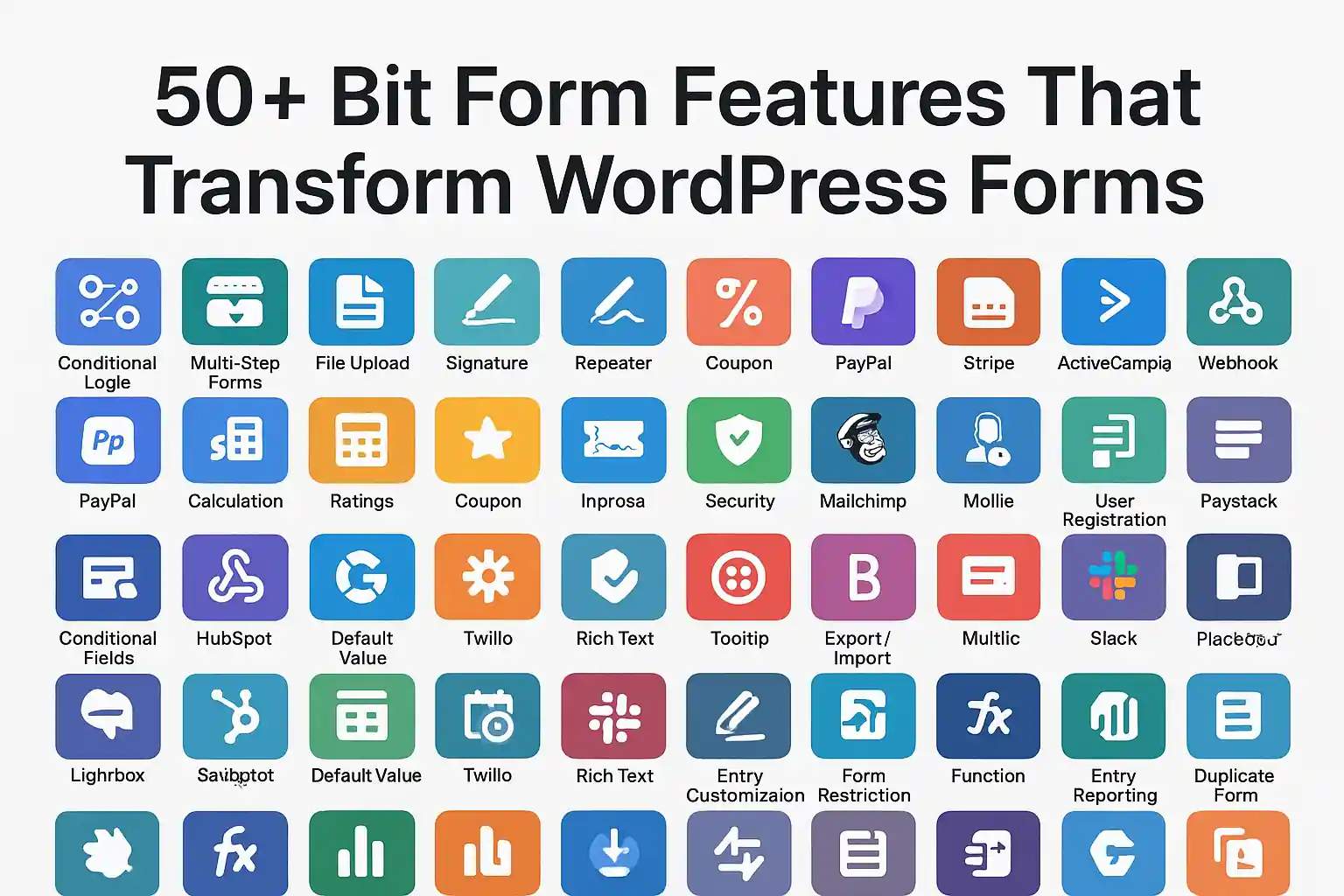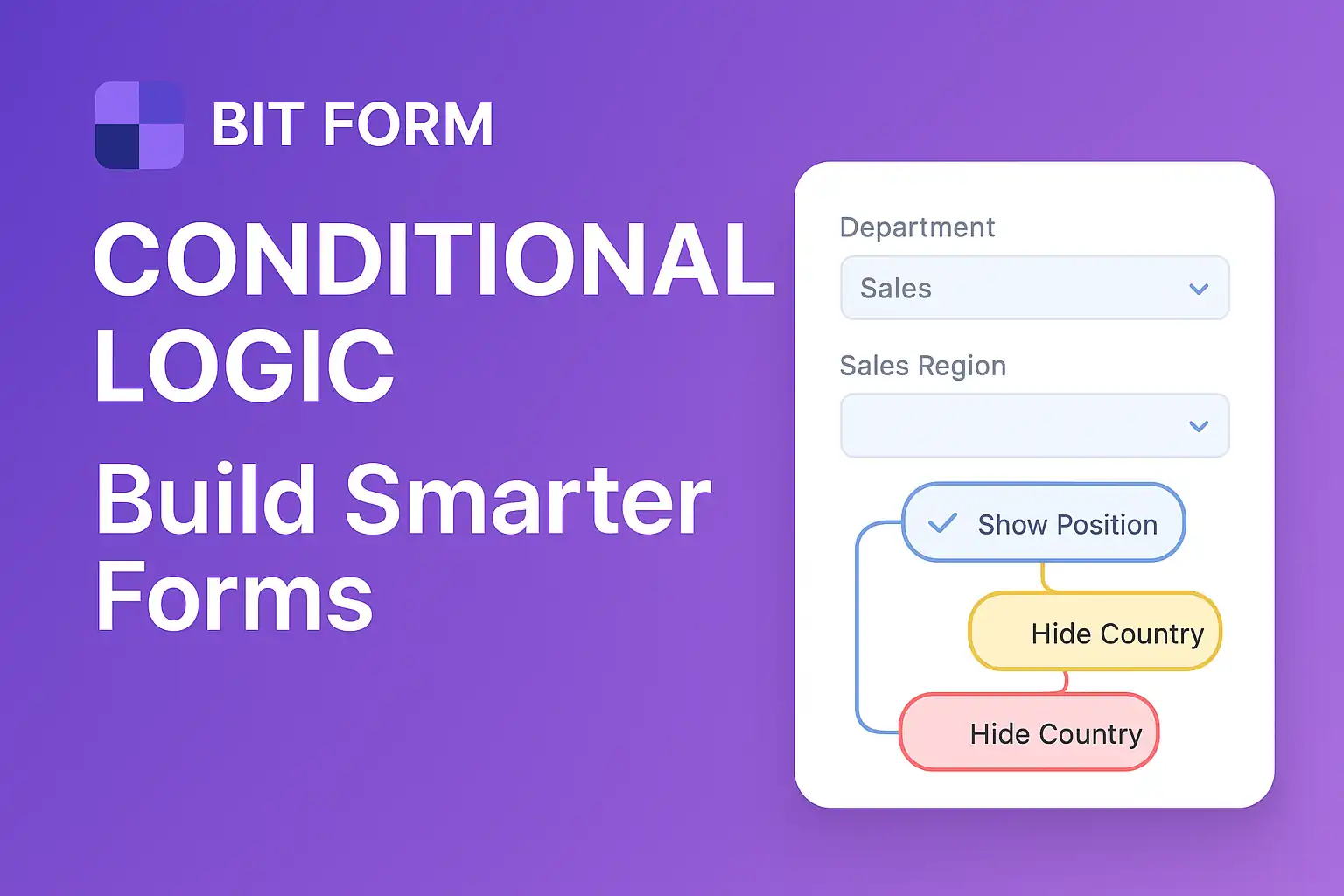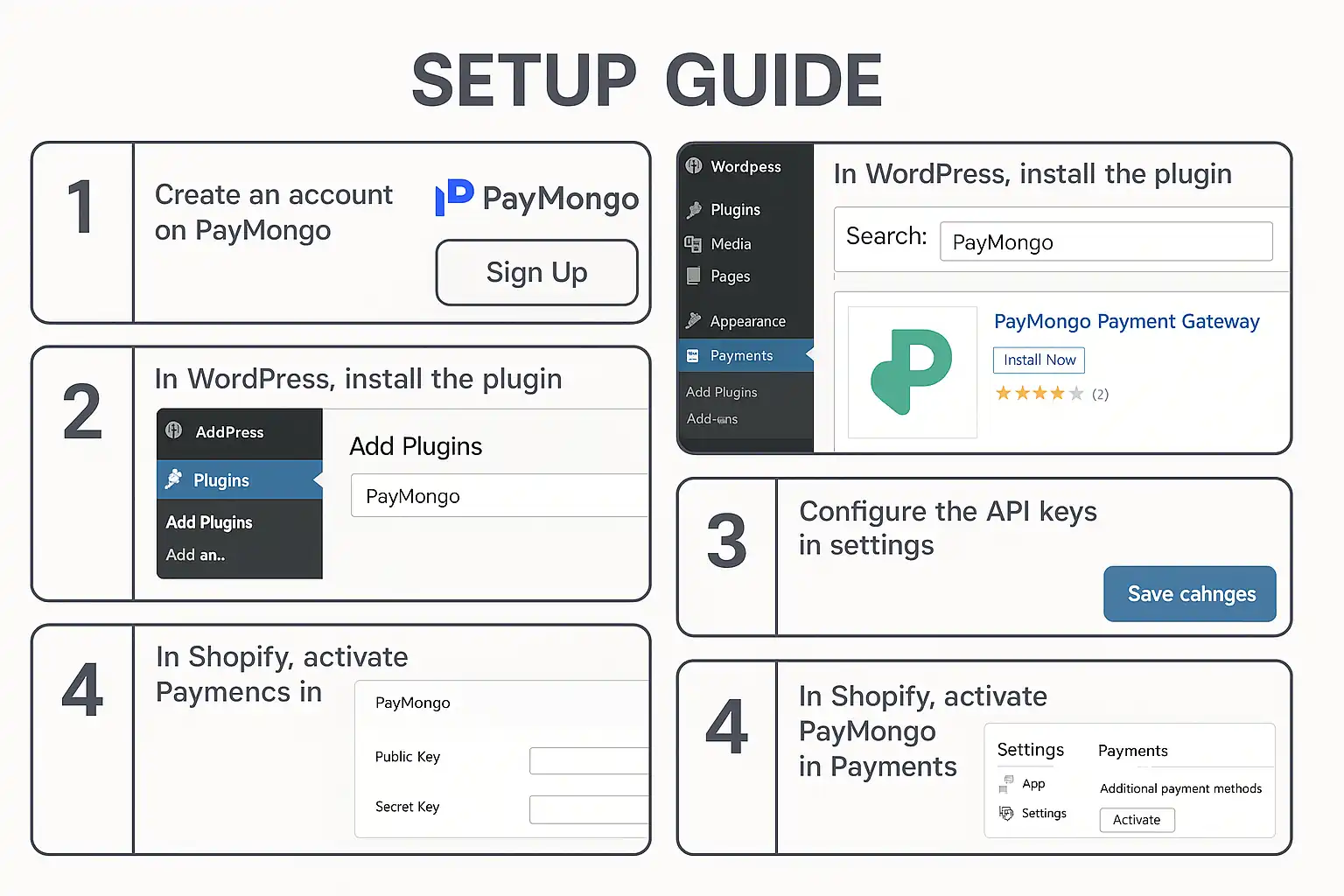
Building forms in WordPress shouldn’t feel like rocket science.
Yet for years, site owners have struggled with bloated plugins, confusing interfaces, and forms that break on mobile devices. Enter Bit Form—a WordPress form plugin that’s changing the game for everyone from solopreneurs to enterprise teams.
This comprehensive guide covers everything you need to know about Bit Form, from basic setup to advanced conditional logic. Whether you’re creating your first contact form or building complex multi-step applications, you’ll find the answers here.
Here’s what makes this guide different: We’re not just scratching the surface. This is the definitive resource on Bit Form, written for people who want to master form building without the technical headaches.
Let’s dive in.
Table of Contents
ToggleBit Form is a free WordPress form plugin designed to create any type of form without writing a single line of code. Unlike legacy form builders that feel stuck in 2010, Bit Form brings modern design principles and powerful functionality to WordPress form creation.
The core philosophy is simple: Forms should be beautiful, functional, and easy to build.
At its heart, the Bit Form WordPress plugin provides a drag-and-drop interface that lets you create everything from simple contact forms to complex multi-step applications. But calling it “just another form builder” misses the point entirely.
Here’s why Bit Form stands out:
The plugin combines visual design freedom with technical power. You get pixel-perfect control over appearance while accessing advanced features like conditional logic, file uploads, and integration capabilities that typically require expensive premium plugins.
Think of Bit Form as the Swiss Army knife of WordPress forms—versatile enough for any use case, yet surprisingly intuitive to use.
The WordPress form plugin landscape is crowded, cluttered, and confusing.
Most solutions fall into two camps: oversimplified builders that can’t handle real business needs, or feature-bloated monsters that require a computer science degree to configure.
Bit Form solves this problem by focusing on three core principles:
Speed and performance. Every kilobyte matters for page load times. The Bit Form plugin is built with modern JavaScript frameworks that load only what’s needed, when it’s needed. Your forms won’t slow down your site.
Design flexibility without code. You shouldn’t need CSS knowledge to create professional-looking forms. The WordPress Bit Form interface gives you complete design control through visual tools.
Power when you need it. Simple tasks stay simple. Complex requirements become possible. That’s the balance most plugins never achieve.
But there’s a bigger picture here.
Forms are the bridge between your content and your conversions. Every email signup, contact request, survey response, and registration flows through forms. When your forms fail—through poor design, technical issues, or user experience problems—your business suffers.
The Bit Form WordPress form plugin addresses these mission-critical needs without the enterprise price tag.
Understanding what Bit Form can do helps you leverage its full potential.
The foundation of any form plugin is its builder interface. Here’s where Bit Form shines.
Visual field placement: Click, drag, position. No grid limitations or rigid layouts. Place fields exactly where you want them.
Real-time preview: See your changes instantly. What you build is what your users see.
Field library: Access 25+ field types including text inputs, dropdowns, checkboxes, radio buttons, file uploads, date pickers, and specialized fields for phone numbers, emails, and URLs.
The interface feels intuitive because it mirrors how you think about forms. You’re not fighting the tool—you’re designing with it.
The Bit Form WordPress plugin supports every field type you’ll need:
Basic input fields:
Selection fields:
Advanced fields:
Specialized inputs:
Each field comes with extensive customization options. Set default values, placeholder text, help descriptions, and validation rules without touching code.
Here’s where Bit Form transforms from a simple form builder into a powerful application platform.
Conditional logic lets you show or hide fields based on user responses. This creates dynamic, personalized form experiences that adapt to each user’s needs.
Common use cases:
Smart contact forms: Show different fields based on inquiry type. Someone asking about sales sees different options than someone requesting support.
Multi-path surveys: Branch questions based on previous answers. Only show relevant follow-ups.
Application forms: Display additional requirements only for applicants who meet certain criteria.
Registration forms: Collect different information based on user type (individual vs. business, student vs. professional).
The Bit Form conditional logic system works through simple if-then rules:
“If [field] [condition] [value], then [show/hide] [target field]”
You can chain multiple conditions together using AND/OR logic. This creates sophisticated form behavior without programming.
But here’s the real power: Conditional logic doesn’t just improve user experience—it increases completion rates. Users see only relevant fields, making forms feel shorter and less overwhelming.
The WordPress form plugin file upload feature in Bit Form handles everything from simple document submissions to complex file management.
Key capabilities:
Multiple file types: Accept documents, images, videos, audio files, and archives. Set allowed file types for security.
Size limits: Control maximum file sizes per field and per form submission.
Multiple files: Let users upload several files in a single field or across multiple upload fields.
Drag-and-drop interface: Users can drag files directly onto the form instead of clicking through file browsers.
Preview before submission: Users see thumbnails of images and file names before submitting.
Secure storage: Files are stored in WordPress media library or custom directories with controlled access.
For businesses collecting resumes, portfolios, documents, or media submissions, these file upload features eliminate the need for third-party file transfer services.
Long forms intimidate users. The solution? Break them into digestible steps.
The WordPress multi step form plugin functionality in Bit Form lets you split any form into multiple pages with progress indicators.
Why multi-step forms work:
Psychological commitment: Users who complete step one are more likely to finish the entire form.
Reduced overwhelm: Seeing five fields feels manageable. Seeing twenty-five fields triggers abandonment.
Logical grouping: Organize related information together (personal details, then business information, then preferences).
Progress feedback: Users see how far they’ve come and how much remains.
Creating multi-step forms in Bit Form:
Add page break fields wherever you want to split the form. Each section becomes a separate step. Configure navigation buttons (Next, Previous, Submit) and add a progress bar that updates automatically.
You can even apply conditional logic to entire steps—showing or skipping sections based on earlier responses.
Forms don’t have to look like boring rectangles from 1999.
Bit Form gives you complete design control through visual styling tools:
Layout options:
Typography controls:
Field styling:
Button customization:
Form-wide themes:
The WordPress Bit Form interface makes these adjustments through point-and-click controls. No CSS required unless you want that level of control.
Every form submission needs to go somewhere. Bit Form handles email routing with flexibility and reliability.
Admin notifications: Get instant alerts when someone submits a form. Include all submission data, customize the email template, and send to multiple recipients.
User confirmations: Send automatic thank-you emails to form submitters. Personalize messages with submitted data using merge tags.
Conditional emails: Send different notifications based on form responses. Route sales inquiries to sales team, support requests to support team.
Email customization:
The WordPress email form plugin capabilities ensure no submission falls through the cracks.
Forms rarely exist in isolation. You need data flowing to CRMs, email marketing platforms, project management tools, and analytics systems.
Bit Form connects with popular services through:
Webhook support: Send form data to any service that accepts webhooks. This enables unlimited integration possibilities.
API connections: Direct integrations with major platforms for seamless data transfer.
WordPress integration: Automatic user registration, post creation, and custom post type population from form submissions.
Common integration scenarios:
Add email subscribers to your marketing platform automatically. Create CRM contacts from lead forms. Generate support tickets from help requests. Add event registrations to your calendar system.
The BitForm plugin handles these connections without requiring Zapier or other middleware services for most use cases.
Ready to build your first form? Here’s the complete setup process.
Step 1: Install the plugin
Navigate to your WordPress dashboard. Go to Plugins > Add New. Search for “Bit Form” in the plugin directory. Click “Install Now” on the Bit Form plugin listing. Wait for installation to complete, then click “Activate.”
Alternative installation method:
Download the plugin ZIP file from WordPress.org. Go to Plugins > Add New > Upload Plugin. Choose the ZIP file and click “Install Now.” Activate after installation completes.
Step 2: Initial configuration
After activation, you’ll see a new “Bit Form” menu item in your WordPress dashboard. Click it to access the form builder interface.
The welcome screen guides you through basic settings:
Set your default email address for notifications. Choose your preferred date and time formats. Configure reCAPTCHA keys if you want spam protection. Set file upload defaults and restrictions.
These settings apply to all forms but can be overridden per form.
The form creation process follows a logical flow:
Start with a template or blank canvas. Bit Form includes pre-built templates for common use cases (contact forms, registration forms, surveys, order forms). Choose a template to start with a foundation, or begin with a blank form for complete creative control.
Add your fields. Click the “Add Field” button to see the field library. Click any field type to add it to your form. Drag fields to reposition them.
Configure each field. Click any field to open its settings panel. Here you’ll set:
Design your form. Switch to the Style tab to customize appearance. Adjust colors, spacing, fonts, and layout. Preview on different screen sizes to ensure mobile responsiveness.
Set up notifications. Configure who receives emails when the form is submitted. Customize email templates and confirmation messages.
Configure form settings. Set submission limits, redirect URLs after submission, spam protection, and data storage options.
Publish your form. Click “Save” to store your form. You’ll receive a shortcode to embed the form anywhere on your site.
The Bit Form WordPress form appears on your site through multiple embedding methods:
Shortcode insertion: Copy the form shortcode (looks like #123 no. Form doesn't exists). Paste it into any post, page, or widget area. The form renders automatically.
Block editor integration: In the WordPress block editor, add a “Shortcode” block or search for the Bit Form block. Select your form from the dropdown menu.
Page builder compatibility: Bit Form works with popular page builders like Elementor, Divi, Beaver Builder, and others. Add a shortcode element and paste your form code.
PHP template integration: For theme developers, use the PHP function do_shortcode(‘#123 no. Form doesn't exists‘) to embed forms directly in template files.
Popup and modal display: Configure forms to appear in lightbox popups triggered by button clicks or page events.
Once you’ve mastered the basics, these advanced strategies unlock Bit Form’s full potential.
Simple conditional logic shows or hides fields. Advanced conditional logic creates intelligent form experiences.
Cascading conditions: Set up chains where field visibility depends on multiple previous selections. This creates decision trees that guide users through complex processes.
Calculated fields: Use conditional logic to perform calculations based on user inputs. Useful for quote generators, price calculators, and order forms.
Dynamic field population: Pre-fill fields based on earlier responses or user data. Reduce repetitive data entry and improve accuracy.
Validation conditions: Apply different validation rules based on context. For example, require certain fields only when specific options are selected.
Strategy for planning complex logic:
Map your form flow on paper first. Identify decision points and branches. Start with the main path, then add conditional branches. Test thoroughly—complex logic can create unexpected interactions.
Application forms need to collect extensive information without overwhelming applicants.
Best practices for multi-step application forms:
Logical progression: Start with basic information, move to detailed questions, end with confirmations. Each step should feel like a natural continuation.
Save and resume: For lengthy applications, enable draft saving so users can complete forms over multiple sessions.
Step validation: Validate each step before allowing progression. Catch errors early rather than at final submission.
Progress indicators: Show clear progress bars or step numbers. Users need to know how much remains.
Review step: Include a final review page showing all submitted information before final submission. Allow editing from the review page.
Conditional step skipping: Use Bit Form conditional logic to skip entire steps that don’t apply to certain users.
File uploads introduce security and performance considerations.
Security measures:
Restrict file types: Only allow necessary file formats. Block executable files and scripts.
Size limits: Set reasonable maximum file sizes. Large files slow submissions and consume server resources.
Virus scanning: For high-security applications, integrate virus scanning on uploaded files.
Access control: Store sensitive uploads outside the public web directory. Provide authenticated download links.
Performance optimization:
Compression: Automatically compress images while maintaining quality.
Chunked uploads: For large files, use chunked uploading to prevent timeout errors.
Progress indicators: Show upload progress so users know the submission is processing.
Clear instructions: Tell users exactly what files to upload, in what format, and size limits before they start.
Validation prevents bad data from entering your system.
The WordPress Bit Form plugin offers multiple validation layers:
Field-level validation: Set rules for individual fields (required, minimum length, maximum length, pattern matching, numeric ranges).
Format validation: Automatic validation for emails, URLs, phone numbers, and other structured data types.
Custom validation messages: Replace generic error messages with helpful, specific guidance.
Real-time validation: Check inputs as users type, providing immediate feedback rather than waiting for submission.
Server-side validation: Always validate on the server, not just in the browser. Client-side validation improves experience but can be bypassed.
Conditional validation: Require fields only when relevant based on other selections.
Best practice approach:
Make validation helpful, not punishing. Explain what’s needed, not just what’s wrong. Validate progressively—check format first, then business rules. Highlight errors clearly and scroll to the first error automatically.
Spam submissions waste time and corrupt data. But aggressive spam prevention frustrates legitimate users.
Balanced spam protection strategies:
reCAPTCHA integration: Google reCAPTCHA v3 runs invisibly, scoring submissions without user interaction. Only suspicious submissions require verification.
Honeypot fields: Add hidden fields that humans won’t fill but bots will. Reject submissions with honeypot data.
Time-based validation: Reject submissions completed impossibly fast (likely bots) or impossibly slow (likely abandoned sessions).
Email verification: For critical forms, send confirmation emails requiring users to verify their address.
Question-based verification: Add simple questions that humans answer easily but bots struggle with (“What is 2+2?” or “What color is the sky?”).
The BitForm WordPress plugin supports all these methods. Layer multiple lightweight protections rather than relying on one aggressive method.
Understanding what’s possible helps you leverage Bit Form for your specific needs.
The foundation of website communication.
Essential elements for effective contact forms:
Name field (consider first and last name separately for personalization). Email address (validated). Subject or inquiry type (dropdown helps route messages). Message field (multi-line text area). Submit button with clear action text.
Enhanced contact forms include:
Phone number field (optional, with format validation). Company name for B2B sites. Preferred contact method. Best time to contact. File attachment for supporting documents.
Use Bit Form conditional logic to:
Show different fields based on inquiry type. Display business-specific fields only when “Business Inquiry” is selected. Add urgency fields for support requests.
The WordPress signup form plugin functionality in Bit Form handles user registration with flexibility.
User account creation: Integrate with WordPress user system to create accounts directly from forms. Set default user roles. Require email verification before activation.
Event registration: Collect attendee information. Handle multiple ticket types. Process payment information. Send confirmation emails with event details.
Membership signups: Gather member information. Offer membership tier selection. Collect payment details. Generate member IDs automatically.
Course enrollment: Register students for classes. Collect prerequisite information. Handle waitlists. Send course access information.
Key features for registration forms:
Password fields with strength indicators. Terms and conditions checkboxes. Privacy policy acknowledgment. Payment integration for paid registrations. Automatic confirmation emails with next steps.
Collect valuable insights from your audience.
Survey design principles:
Start with easy questions to build momentum. Use appropriate field types (rating scales, multiple choice, open text). Keep surveys focused on specific topics. Show progress indicators for longer surveys. Make most questions optional to reduce abandonment.
Feedback form types:
Customer satisfaction surveys: Post-purchase feedback. Service quality ratings. Net Promoter Score (NPS) questions.
Product feedback: Feature requests. Bug reports. Usability testing responses.
Event feedback: Post-event surveys. Session ratings. Speaker evaluations.
Employee feedback: Anonymous suggestion boxes. Satisfaction surveys. Exit interviews.
Use Bit Form’s conditional logic to:
Ask follow-up questions based on ratings. Show different questions for different customer segments. Skip irrelevant sections based on earlier responses.
Process transactions and reservations.
Product order forms: Item selection with quantities. Variant options (size, color). Price calculations. Shipping information. Payment processing.
Service booking forms: Service selection. Date and time scheduling. Duration selection. Provider preferences. Deposit collection.
Appointment scheduling: Calendar integration. Available time slot display. Buffer time between appointments. Reminder email automation.
Reservation forms: Capacity management. Date range selection. Special requirements collection. Deposit or full payment processing.
Essential features:
Real-time availability checking. Automatic price calculations. Payment gateway integration. Confirmation emails with booking details. Calendar file attachments for easy scheduling.
Capture potential customers effectively.
Lead form optimization strategies:
Minimize friction: Ask only essential questions initially. Collect detailed information later in the sales process.
Value proposition: Clearly state what users receive (free guide, consultation, quote).
Progressive profiling: For returning visitors, ask different questions each time to build complete profiles gradually.
Lead magnet delivery: Automatically send promised resources via email. Provide immediate download links on confirmation pages.
Lead scoring: Use form responses to qualify leads. Route high-value leads to sales immediately. Nurture lower-priority leads through automation.
Effective lead form fields:
Name and email (required). Company and role (for B2B). Phone number (optional, increases quality but reduces quantity). Specific interest or challenge. How they heard about you (attribution tracking).
Engage users while collecting valuable data.
Quiz types:
Knowledge tests: Educational assessments. Certification exams. Training completion tests.
Personality quizzes: Type assessments. Preference identification. Recommendation engines.
Scored assessments: Calculate results based on responses. Provide personalized feedback. Generate reports.
Implementation strategies:
Use conditional logic to branch questions based on answers. Calculate scores using hidden fields and formulas. Display results on confirmation pages. Email detailed reports to participants. Segment users based on quiz results for targeted follow-up.
Creating forms is just the beginning. Managing submissions and data efficiently is equally important.
The Bit Form WordPress plugin includes a comprehensive submission management system.
Submission dashboard features:
Centralized inbox: View all submissions across all forms in one place. Filter by form, date range, or status.
Detailed submission view: Click any submission to see all field data, submission time, user information, and IP address.
Status tracking: Mark submissions as read, pending, completed, or custom statuses. Track which submissions need follow-up.
Search and filter: Find specific submissions quickly using keyword search or advanced filters.
Bulk actions: Process multiple submissions simultaneously. Export selected submissions. Delete spam in bulk.
Notes and comments: Add internal notes to submissions. Track communication history. Assign submissions to team members.
Get your data out of WordPress when needed.
Export formats:
CSV export: Universal format compatible with Excel, Google Sheets, and database systems. Includes all form fields and submission metadata.
Excel export: Native XLSX format with formatting preserved. Useful for detailed analysis and reporting.
JSON export: Structured data format for technical integrations and data processing.
PDF export: Generate formatted PDF reports of individual submissions. Useful for printing or archiving.
Export options:
Export all submissions or filtered subsets. Choose which fields to include. Set date ranges for exports. Schedule automatic exports for regular reporting.
Handling form data responsibly isn’t optional—it’s a legal requirement in many jurisdictions.
GDPR compliance features:
Consent checkboxes: Add required consent checkboxes for data processing. Store consent records with timestamps.
Privacy policy links: Include clear links to privacy policies. Require acknowledgment before submission.
Data access requests: Export all data associated with a specific user. Provide data in portable formats.
Right to deletion: Permanently delete user data upon request. Remove data from all systems and backups.
Data retention policies: Automatically delete old submissions after specified periods. Configure retention rules per form.
Data minimization: Only collect necessary information. Avoid storing sensitive data unnecessarily.
Secure storage: Encrypt sensitive data at rest. Use secure connections for data transmission.
Best practices:
Be transparent about data usage. Collect only what you need. Delete data when no longer needed. Provide easy access to privacy controls. Document your data handling procedures.
Forms should enhance your site, not slow it down.
Every millisecond matters for user experience and SEO.
Performance optimization techniques:
Lazy loading: Load form scripts only when forms are visible. Reduces initial page load time for pages with forms below the fold.
Script optimization: Bit Form loads minimal JavaScript. Only necessary libraries are included. No jQuery dependency reduces overhead.
CSS optimization: Inline critical CSS for above-the-fold forms. Defer non-critical styling. Minimize CSS file sizes.
Conditional asset loading: Load integration scripts only when needed. Don’t load reCAPTCHA on every page—only pages with forms.
Caching compatibility: Ensure forms work with page caching plugins. Use AJAX submission to maintain functionality with cached pages.
Image optimization: Compress images used in forms. Use appropriate formats (SVG for icons, WebP for photos). Lazy load decorative images.
Over 60% of web traffic comes from mobile devices. Your forms must work flawlessly on small screens.
Mobile-responsive design:
Automatic responsiveness: Bit Form forms adapt to screen size automatically. Fields stack vertically on narrow screens. Touch targets meet minimum size requirements.
Mobile-specific optimizations:
Input types: Use appropriate mobile keyboard types (numeric keyboard for phone numbers, email keyboard for email fields).
Field sizing: Larger tap targets for mobile users. Adequate spacing between fields to prevent mis-taps.
Simplified layouts: Reduce multi-column layouts to single columns on mobile. Minimize horizontal scrolling.
File uploads: Mobile-optimized file pickers. Camera access for photo uploads. Drag-and-drop support on mobile browsers.
Testing approach:
Test forms on actual devices, not just browser simulators. Check various screen sizes (phones, tablets). Test both portrait and orientation modes. Verify keyboard behavior and field focus. Ensure submit buttons remain accessible.
A form that doesn’t convert is just decoration.
Strategies to increase form completions:
Reduce field count: Every additional field reduces completion rates. Ask only essential questions. Use progressive profiling for additional data.
Clear value proposition: Tell users why they should complete the form. Explain what happens next. Set expectations for response time.
Visual hierarchy: Make the most important elements prominent. Use size, color, and position to guide attention. Ensure submit buttons stand out.
Error handling: Validate in real-time when possible. Provide clear, helpful error messages. Highlight errors visually. Scroll to first error automatically.
Progress indicators: For multi-step forms, show progress clearly. Let users know how much remains. Consider showing time estimates.
Social proof: Add trust indicators near forms. Display security badges. Mention how many others have submitted. Include testimonials about your responsiveness.
Autofill support: Enable browser autofill for faster completion. Use standard field names for autofill compatibility. Pre-fill known user data for logged-in users.
Mobile optimization: Ensure forms work perfectly on mobile. Use appropriate keyboard types. Make tap targets large enough.
A/B testing: Test different form layouts. Try various field orders. Experiment with button text and colors. Measure completion rates objectively.
Even the best tools occasionally present challenges. Here’s how to solve common Bit Form issues.
Symptoms: Shortcode appears as text, or nothing shows where form should be.
Solutions:
Check plugin activation: Ensure Bit Form is active in Plugins menu. Deactivate and reactivate if necessary.
Verify shortcode: Confirm shortcode syntax is correct. Check form ID matches an existing form. Ensure no extra spaces or characters.
Theme conflicts: Switch to a default WordPress theme temporarily. If form appears, your theme has compatibility issues. Contact theme developer or add custom CSS.
JavaScript errors: Open browser console (F12). Look for JavaScript errors. Errors from other plugins can break form functionality.
Caching issues: Clear site cache completely. Disable caching temporarily to test. Configure cache plugin to exclude form pages.
Symptoms: Form appears to submit but data doesn’t save, or error messages appear.
Solutions:
Check server requirements: Verify PHP version meets minimum requirements. Ensure adequate memory limits. Check file upload size limits for forms with file fields.
Email delivery issues: Test WordPress email functionality generally. Configure SMTP plugin for reliable delivery. Check spam folders for notifications.
Validation errors: Review all required fields. Check validation rules for conflicts. Test with minimal data to isolate issues.
Server timeout: For large file uploads, increase PHP max_execution_time. Adjust upload_max_filesize and post_max_size in php.ini.
Database issues: Check database connection. Verify adequate database storage space. Review error logs for database errors.
Symptoms: Form appears but styling is broken or inconsistent.
Solutions:
CSS conflicts: Inspect element to identify conflicting styles. Add custom CSS with higher specificity. Use !important declarations sparingly.
Theme interference: Some themes apply aggressive styling to form elements. Override with custom CSS. Use Bit Form’s styling options to establish base styles.
Responsive issues: Test at various screen widths. Adjust breakpoints in Bit Form settings. Add custom media queries if needed.
Font loading: Ensure custom fonts load properly. Check font file paths. Verify font formats are compatible.
Symptoms: Form submissions don’t reach connected services.
Solutions:
API credentials: Verify API keys are correct and active. Check for expired credentials. Ensure proper permission scopes.
Webhook testing: Use webhook testing tools to verify payload format. Check endpoint URLs for typos. Verify receiving service is operational.
Data mapping: Confirm field mapping is correct. Check for required fields in destination service. Verify data format compatibility.
Connection logs: Review integration logs in Bit Form. Look for error messages. Test with minimal data to isolate issues.
These proven strategies ensure your forms perform optimally.
Clarity over cleverness: Make forms obvious and easy to understand. Avoid creative layouts that confuse users. Use standard patterns people recognize.
Consistent styling: Maintain visual consistency across all forms. Use the same color schemes and typography. Create a recognizable form style for your brand.
Logical field order: Group related information together. Follow natural conversation flow. Start with easy questions, build to complex ones.
White space usage: Don’t crowd fields together. Use spacing to create visual breathing room. Separate sections clearly.
Accessible design: Ensure sufficient color contrast. Provide text alternatives for visual elements. Support keyboard navigation. Test with screen readers.
Set clear expectations: Tell users what information you need upfront. Explain why you’re asking for each piece of data. Indicate required vs. optional fields clearly.
Provide help when needed: Add help text for complex fields. Include examples of correct formats. Offer tooltips for additional guidance.
Confirm successful submission: Show clear success messages. Explain what happens next. Provide confirmation numbers or reference IDs.
Enable draft saving: For long forms, let users save progress. Send reminder emails to complete abandoned forms. Auto-save periodically.
Respect user time: Only ask for information you’ll actually use. Consider alternative data collection methods. Thank users for their time.
Input sanitization: Clean all user input before processing. Remove potentially harmful code. Validate data types strictly.
Output escaping: Escape data before displaying. Prevent cross-site scripting attacks. Use WordPress sanitization functions.
Spam protection: Implement multiple spam prevention layers. Monitor submission patterns. Block obvious spam sources.
Rate limiting: Prevent submission flooding. Limit submissions per IP address. Implement CAPTCHA for suspicious activity.
Secure file uploads: Restrict file types strictly. Scan uploads for malware. Store files outside web root when possible.
Data encryption: Use HTTPS for all form pages. Encrypt sensitive data in database. Secure API connections.
Comprehensive testing checklist:
Functional testing: Submit forms with valid data. Test all field types. Verify conditional logic works correctly. Check file uploads complete successfully. Confirm email notifications send properly.
Validation testing: Test required field validation. Submit invalid data formats. Test minimum and maximum length limits. Verify custom validation rules work.
Cross-browser testing: Test in Chrome, Firefox, Safari, Edge. Check mobile browsers (iOS Safari, Chrome Mobile). Verify form works in older browser versions.
Device testing: Test on various phone sizes. Check tablet displays. Verify desktop responsiveness. Test touch interactions on mobile.
Integration testing: Verify data reaches connected services. Check data mapping accuracy. Test error handling for failed integrations.
Performance testing: Measure form load time. Test submission speed. Check performance with large file uploads. Verify behavior under load.
Accessibility testing: Navigate forms using keyboard only. Test with screen readers. Verify color contrast ratios. Check focus indicators.
Form technology continues evolving. Understanding trends helps you stay ahead.
Conversational forms: Forms that feel like natural conversations. One question at a time. Personalized based on responses. Higher engagement and completion rates.
Voice-enabled forms: Voice input for hands-free completion. Accessibility benefits for users with disabilities. Natural language processing for understanding responses.
AI-powered optimization: Automatic field ordering based on completion data. Intelligent conditional logic suggestions. Predictive text for faster completion.
Progressive web forms: Offline form completion capability. Background synchronization when connection returns. App-like experiences without app installation.
Blockchain verification: Immutable submission records. Cryptographic proof of submission time. Enhanced security for critical applications.
Privacy laws continue expanding globally. Future-proof your forms:
Privacy by design: Build privacy into forms from the start. Collect minimal necessary data. Implement automatic data deletion.
Consent management: Granular consent options. Easy consent withdrawal. Clear consent records.
Data portability: Easy export in standard formats. Complete data packages on request. Automated fulfillment systems.
Regional compliance: Adapt forms based on user location. Apply appropriate privacy rules automatically. Maintain compliance documentation.
Forms increasingly serve as data collection hubs connecting multiple systems:
No-code integrations: Visual integration builders. Pre-built connectors for popular services. Template-based integration setup.
API-first approach: Robust APIs for custom integrations. Webhook support for real-time data transfer. GraphQL for flexible data queries.
Automation platforms: Native integration with Zapier, Make, and similar tools. Trigger complex workflows from form submissions. Multi-step automation sequences.
Mastering form building transforms how you collect information, engage users, and grow your business.
The Bit Form WordPress plugin provides the tools you need—from simple contact forms to complex multi-step applications. But tools alone don’t guarantee success. Understanding form strategy, user experience principles, and optimization techniques separates amateur forms from professional solutions.
Professional
Expert web development services to grow your business online
Custom website development
Launch a powerful online store
Increase your visibility on search engines
Lightning-fast loading speeds
Protect your digital investment
Learn how QR PH payment works for Philippine e-commerce. Compare PayMongo QR PH vs Xendit QR PH APIs, integration steps, and accepted merchants in 2026.
Explore 50+ bit form features including drag & drop, conditional logic, multi-step forms, analytics, and integrations. Master bitform WordPress plugin capabilities.
Master form conditional logic in WordPress with Bit Form. Learn how to create smart, dynamic forms using drag-drop builders and conditional rules step-by-step.
Guide to integrating PayMongo payment gateway with WordPress and Shopify. Learn about GCash, fees, webhooks, test cards, and developer tools.
Compare PayMongo vs Xendit for your Philippine online store. Discover fees, features, integration options, and which payment gateway fits your business needs.
Discover the key differences between e-commerce platforms and marketplaces. Learn which option suits your business best with real examples and expert insights.

At KS Code, we specialize in crafting high-performing, visually stunning websites tailored to your business needs. From responsive designs to powerful e-commerce solutions, our goal is to help you stand out, engage users, and drive results online.