You’ve built a form. Users fill it out. But here’s the problem: everyone sees the same fields, even when they’re irrelevant. A customer selecting “Business” still sees questions meant for “Individual” users. The result? Form abandonment, frustrated users, and incomplete data.
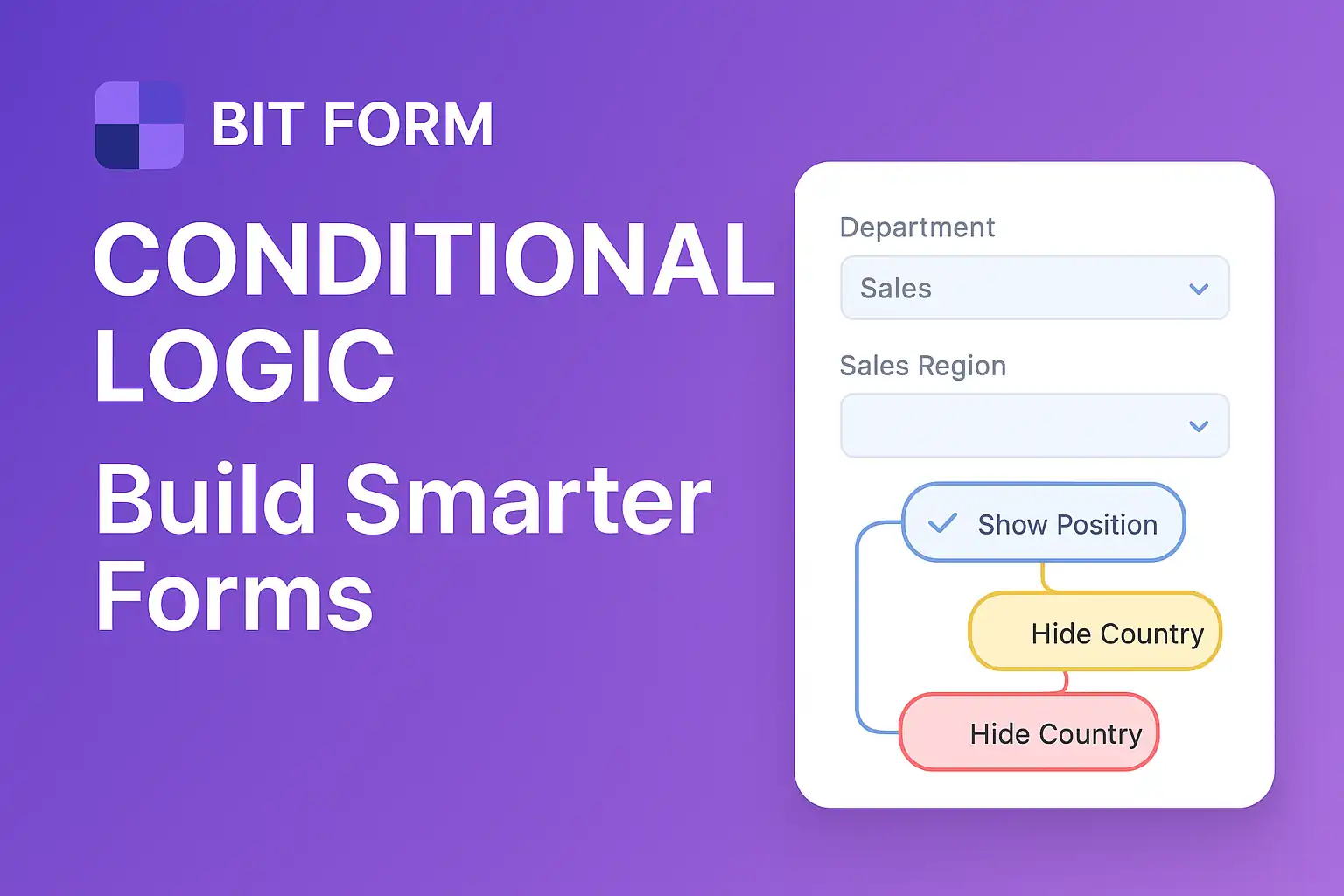
Form conditional logic solves this by showing or hiding fields based on user responses, creating dynamic, personalized experiences. This concept is a key part of our wider guide on Bit Form WordPress Plugin: The Ultimate Guide 2026, where we explore how modern form builders transform WordPress sites into intelligent data collection systems.
In this guide, I’ll show you exactly how to implement conditional logic in your WordPress forms, why it matters for conversions, and how to leverage the Bit Form conditional logic system to create forms that think.
What Is Form Conditional Logic and Why Does It Matter?
Form conditional logic is a rule-based system that dynamically shows, hides, or modifies form fields based on user input or behavior. When a user selects an option, checks a box, or enters specific data, the form automatically adapts—revealing relevant questions while hiding irrelevant ones.
Think of it as a conversation rather than an interrogation. Instead of bombarding users with 30 questions upfront, you ask 5, then adjust based on their answers. This creates:
- Higher completion rates (up to 35% improvement in some studies)
- Better data quality (users only answer relevant questions)
- Improved user experience (less cognitive load)
- Reduced form abandonment (shorter perceived length)
For WordPress site owners, this means transforming static forms into intelligent interfaces that guide users through personalized journeys.
How Bit Form Conditional Logic Works
The Bit Form conditional logic engine operates on an “if-this-then-that” framework. You define triggers (conditions) and actions (what happens when conditions are met).
The Core Components
Triggers:
- Field values (dropdown selections, radio buttons, checkboxes)
- User input (text contains, equals, is greater than)
- Calculation results (numeric comparisons)
- Multiple conditions (AND/OR logic)
Actions:
- Show/hide fields or entire sections
- Make fields required or optional
- Change field values automatically
- Skip to specific form steps
- Display custom messages
Bit Form Conditional: The Visual Approach
Unlike code-heavy solutions, Bit Form uses a visual conditional builder. You select the field that triggers the rule, choose your condition operator (equals, contains, is greater than, etc.), set the value, then define what happens.
This drag-drop form builder approach means you’re clicking, not coding. No PHP functions, no JavaScript debugging—just logical rule creation through an intuitive interface.
Setting Up WordPress Form With Conditional Logic
Let me walk you through creating your first conditional form in WordPress using Bit Form.
Step 1: Plan Your Logic Flow
Before touching the form builder, map out your conditional paths:
- What information determines which fields appear?
- Which fields are universal vs. conditional?
- What’s the decision tree structure?
Example scenario: A service inquiry form where users select “New Client” or “Existing Client.” New clients need company details; existing clients need their account number.
Step 2: Build Your Base Form Structure
Using the BitForm form builder:
- Add your trigger field (the one that determines what appears next)
- Add all possible conditional fields (even though they’ll be hidden initially)
- Organize fields logically—group related conditional fields together
Step 3: Create Your Conditional Rules
Access the conditional logic panel in Bit Form:
- Click the field you want to control
- Navigate to “Conditional Logic” settings
- Click “Add Condition”
- Select your trigger field
- Choose your operator (equals, not equals, contains, etc.)
- Enter the trigger value
- Set the action (show/hide/require)
Step 4: Test Every Path
This is critical. Test each conditional branch:
- Fill out the form as different user types
- Verify fields appear/disappear correctly
- Check that required validations work
- Test on mobile devices (touch interactions differ)
WordPress Forms With Conditional Logic: Advanced Techniques
Once you’ve mastered basic show/hide rules, these advanced techniques unlock powerful form behaviors.
Multi-Condition Logic (AND/OR Operators)
Create rules that require multiple conditions:
AND logic: Show field X only if field A equals “Yes” AND field B equals “Premium”
OR logic: Show field Y if field A equals “Option 1” OR field A equals “Option 2”
Bit Form conditional logic supports unlimited condition groups, letting you build complex decision trees without writing code.
Calculated Field Conditionals
Trigger actions based on calculations:
- Show discount field if total > $500
- Require manager approval if quantity > 100
- Display shipping options based on weight calculations
This transforms forms with conditional logic into smart business tools that enforce rules automatically.
Conditional Required Fields
Make fields required only when relevant:
- Email required if “Contact me” is checked
- Phone number required if “Call back” is selected
- Tax ID required if “Business” is chosen
This prevents the frustration of users wondering why they must fill “irrelevant” required fields.
Multi-Step Conditional Navigation
In multi-page forms, use conditionals to:
- Skip entire steps based on earlier answers
- Show different step 3 options depending on step 1 choices
- Create personalized form journeys
The drag drop form builder interface makes managing these complex flows visual and manageable.
Common Use Cases for Forms With Conditional Logic
Customer Support Tickets
Scenario: Different issue types need different information.
- User selects “Technical Issue” → Show device type, OS, error message fields
- User selects “Billing Question” → Show account number, invoice number fields
- User selects “General Inquiry” → Show simple message field
Event Registration Forms
Scenario: Registration details vary by attendee type.
- “Speaker” selected → Show session topic, bio, headshot upload
- “Attendee” selected → Show dietary preferences, workshop choices
- “Sponsor” selected → Show sponsorship level, booth requirements
Lead Qualification Forms
Scenario: Qualify leads before sales contact.
- Budget under $10k → Route to self-service resources
- Budget $10k-50k → Route to inside sales
- Budget over $50k → Route to enterprise sales team
Job Application Forms
Scenario: Different positions require different information.
- “Developer” selected → Show GitHub profile, coding experience
- “Designer” selected → Show portfolio link, design tools proficiency
- “Manager” selected → Show leadership experience, team size managed
Optimizing WordPress Form With Conditional Logic for Conversions
Implementing conditional logic isn’t just about functionality—it’s about optimization.
Start Simple, Then Expand
Begin with one or two conditional rules. Monitor completion rates. Add complexity gradually. Over-complicated forms confuse users even with smart logic.
Use Progressive Disclosure
Reveal fields in logical sequences:
- Ask qualifying questions first
- Show relevant follow-ups
- Request detailed information last
This creates momentum. Users invest time answering initial questions, making them more likely to complete subsequent fields.
Provide Context for Conditional Fields
When new fields appear, users might be confused. Add brief helper text:
“Since you selected Business account, we need your company details below.”
This acknowledges the dynamic change and explains why new fields appeared.
Test Different Conditional Paths
Use A/B testing to optimize:
- Which trigger questions work best?
- Should you hide fields or show them as disabled?
- Does multi-step or single-page work better with your conditionals?
The BitForm form builder’s preview mode lets you test variations before publishing.
Troubleshooting Common Conditional Logic Issues
Fields Not Showing/Hiding
Check:
- Trigger field name matches exactly in your condition
- Condition operator is correct (equals vs. contains)
- Value comparison is case-sensitive where applicable
- Multiple conditions use correct AND/OR logic
Validation Errors on Hidden Fields
If a required field is hidden by conditional logic, it shouldn’t trigger validation. In Bit Form conditional settings, ensure hidden fields automatically become non-required.
Mobile Display Issues
Conditional fields might behave differently on mobile:
- Test touch interactions with dropdowns
- Verify fields reflow correctly when appearing
- Check that keyboard doesn’t obscure newly shown fields
Performance With Many Conditions
Forms with 20+ conditional rules might experience lag. Optimize by:
- Combining similar conditions
- Using multi-step forms to reduce simultaneous rules
- Limiting real-time calculations
Form Conditional Logic Best Practices
Keep it intuitive: Users shouldn’t be surprised when fields appear. Make trigger questions clear.
Avoid conditional loops: Don’t create situations where showing field A hides field B which shows field A again.
Document your logic: For complex forms, maintain a flowchart of conditional paths for future editing.
Consider accessibility: Screen readers should announce when new fields appear. Bit Form handles this automatically, but test with actual screen readers.
Use default values wisely: Pre-populate conditional fields when possible to reduce user effort.
Test edge cases: What happens if a user changes their answer after conditional fields appear? Ensure the form handles this gracefully.
The Future of Conditional Forms in WordPress
Conditional logic is evolving beyond simple show/hide rules. Emerging capabilities include:
- AI-powered suggestions: Forms that predict what users need based on partial input
- Integration-based conditionals: Show fields based on CRM data or user history
- Behavioral triggers: Conditionals based on time spent, scroll depth, or exit intent
- Dynamic pricing displays: Real-time cost calculations based on selections
The drag-drop form builder approach makes these advanced features accessible to non-developers, democratizing sophisticated form functionality.
Frequently Asked Questions
What is form conditional logic in WordPress?
Form conditional logic is a feature that shows, hides, or modifies form fields based on user responses. When a user selects a specific option or enters certain data, the form automatically adapts to display only relevant fields, creating a personalized, dynamic experience.
Can I use conditional logic without coding in WordPress?
Yes. Modern WordPress form builders like Bit Form provide visual conditional logic builders where you create rules through dropdown menus and click interfaces. No PHP, JavaScript, or coding knowledge is required to implement sophisticated conditional forms.
How many conditional rules can I add to a single form?
Bit Form supports unlimited conditional rules per form. However, for optimal performance and user experience, it’s best to keep complex forms under 20-30 active conditional rules and consider multi-step forms for more extensive logic requirements.
Does conditional logic work on mobile devices?
Yes. Properly implemented conditional logic works seamlessly across all devices. Bit Form’s responsive design ensures conditional fields appear, hide, and validate correctly on smartphones and tablets, though you should always test mobile-specific interactions like touch-based dropdowns.
Can I use conditional logic to change form submission destinations?
Absolutely. Advanced conditional logic can route form submissions to different email addresses, CRM systems, or webhooks based on user responses. For example, sales inquiries go to the sales team while support requests route to the help desk, all from the same form.